Pocket Ninja Journal
iPhone Gaming Tips: Longer Battery, Fewer Interruptions, Better Play
· 6 min read
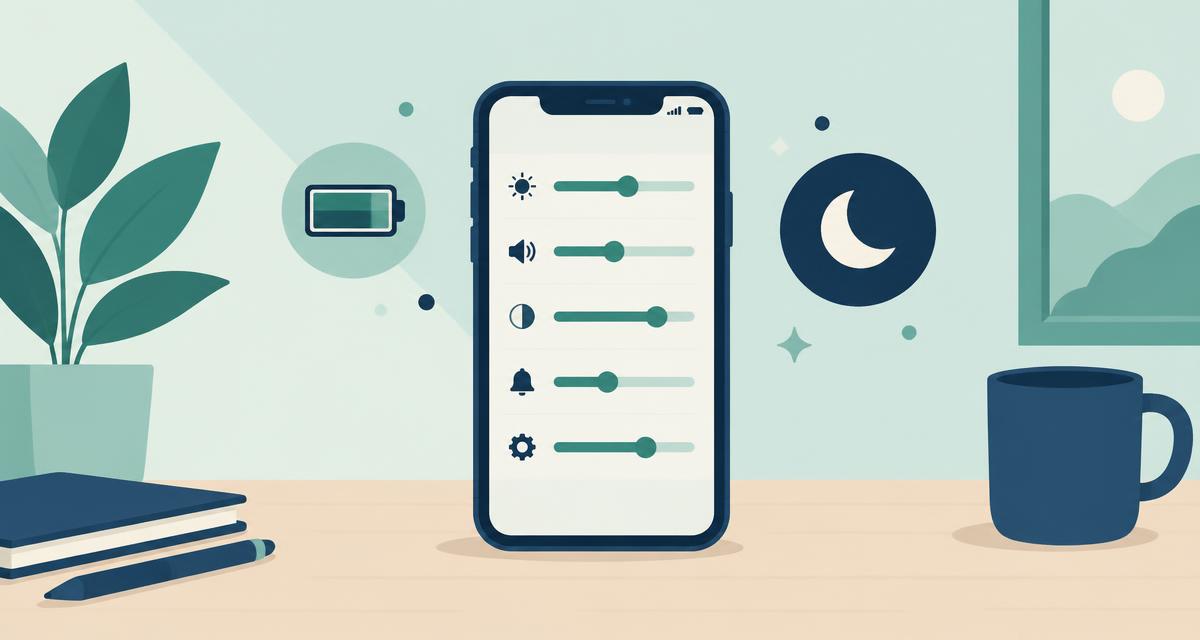
Short answer: most iPhone gaming problems are settings problems. Ten minutes in Settings buys you longer battery life, no interrupted runs and games that keep working when the signal does not.
Battery
- Brightness is the biggest single drain. Drop it two notches before a long session; on OLED iPhones, dark mode helps too.
- Low Power Mode is fine for puzzle games. It caps background activity and refresh rate — invisible in a word game, very visible on the battery.
- Play offline when you can. No ad requests and no radio activity means less work for the phone during a session that is otherwise mostly screen.
- Watch the case. A hot iPhone throttles; a thick case during charging and playing is the usual cause.
Interruptions
- Make a gaming Focus. Settings → Focus → new Focus, allow calls from favourites only, and switch it on when you play. Banners land over the top of the screen, which is where a stray tap does the most damage in a timed mode.
- Turn on Guided Access for kids. Settings → Accessibility → Guided Access locks the phone to one app with a triple-click.
- Silence "rate this app" fatigue. Settings → App Store → turn off In-App Ratings & Reviews.
Storage, progress and comfort
- Offload instead of deleting. Settings → General → iPhone Storage → Offload App frees the app's space and keeps its saved data for when you reinstall.
- Check where progress lives. Games with iCloud sync or Game Center follow you to a new iPhone; purely on-device progress does not. Worth knowing before you upgrade.
- Use Reachability one-handed. A swipe down on the bottom edge pulls the top of the screen into reach — helpful in any portrait puzzle game.
Two games that behave well under these settings
Wordfly: Daily Word Puzzles plays every mode offline and needs no account, so Low Power Mode and airplane mode cost you nothing in the puzzles themselves. A connection is still needed for the things that live outside them: ads, purchases and restoring them, Game Center leaderboards and friends, and iCloud sync between your own devices. Bounce Em Balls also runs offline, with progress and best scores stored on the device — so use Offload rather than Delete if you need the space back.
Wordfly: Daily Word Puzzles
Four word games in one, free on iPhone.


Bounce Em Balls
Neon brick breaking, 150 levels, free on iPhone.
Frequently asked
How do I stop my iPhone battery draining while gaming?
Lower screen brightness, turn on Low Power Mode, close background apps that use location, and play offline when the game allows it — loading ads and syncing keep the radios busy, so cutting them out can only help.
How do I stop notifications interrupting a game?
Set up a Focus mode in Settings, allow only calls from favourites, and tie it to the games you play. A notification banner drops in over the top of the screen, which is exactly where a mis-tap costs you a timed round.
Do iPhone games work in airplane mode?
Games that store their content on the device do. Test it before you travel: switch on airplane mode, force-close the game and open it cold. Wordfly: Daily Word Puzzles and Bounce Em Balls both keep working.
Does deleting a game delete my progress?
Usually yes if progress is stored only on the device. Use Offload App in iPhone Storage instead — it frees the app's space and keeps its data.
More reading: offline word games for flights · choosing an iPhone puzzle game · all our apps.